
Multi-Artboard Grid Systems in Illustrator: Consistent Layout Guides for Brand Books

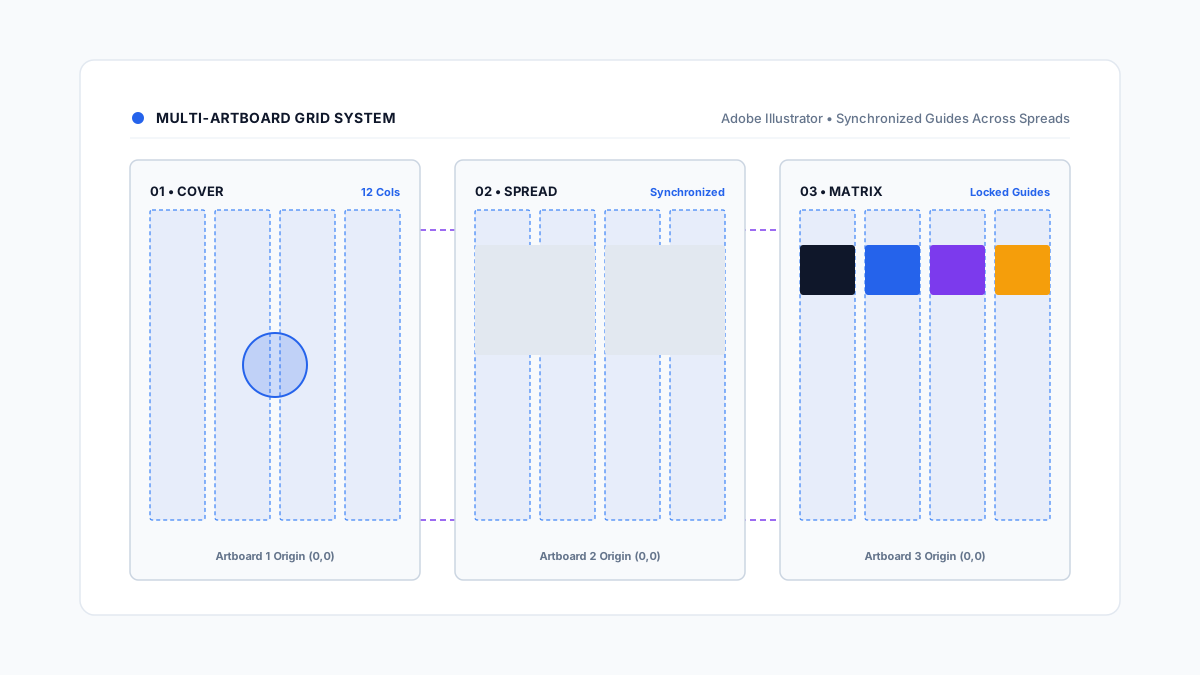
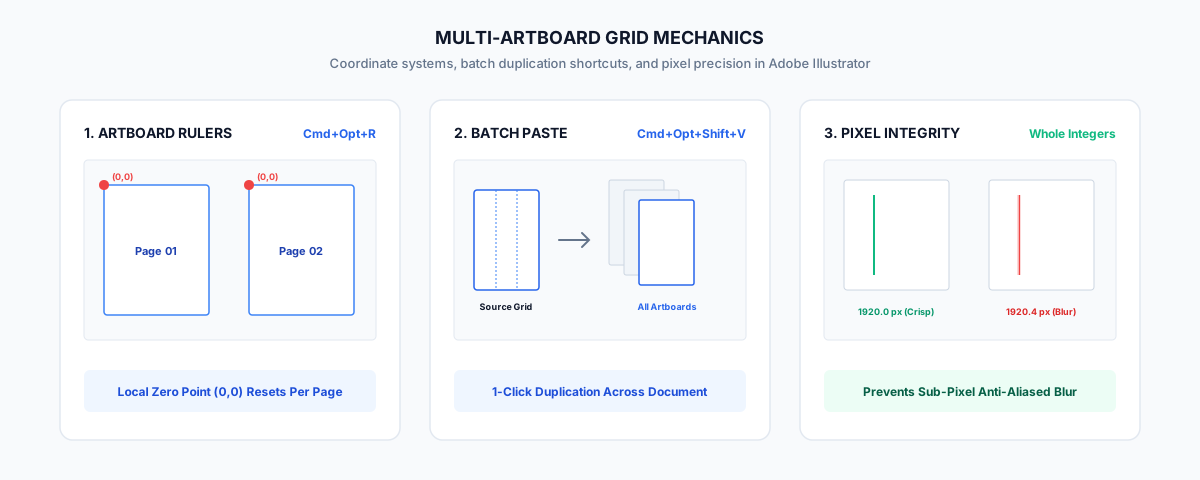
Quick Answer: To replicate a consistent layout grid across all artboards in Adobe Illustrator, construct your column or modular rectangles on Artboard 1, cut them (Cmd + X / Ctrl + X), press Paste on All Artboards (Cmd + Option + Shift + V / Ctrl + Alt + Shift + V), and convert them into native guides using Make Guides (Cmd + 5 / Ctrl + 5). Always ensure Artboard Rulers (Cmd + Option + R) are active so guide coordinates anchor locally to each artboard origin ($X:0, Y:0$).
Workflow Note
When designing 20+ page brand guidelines books or multi-slide client pitch decks, manually duplicating, nudging, and locking guide paths across dozens of artboards introduces fractional ruler drift and tedious maintenance whenever spreads are reordered. The GridMaster panel extension automates batch grid generation, synchronizing 12-column, modular, baseline, and composition overlays across every artboard simultaneously in one click. To present your complete visual identity rules inside an industry-standard framework, build your client presentations using our Ultimate Brand Guidelines Template.
1. The Multi-Artboard Challenge: Global vs. Artboard Coordinates
Multi-page deliverables in Adobe Illustrator—such as comprehensive brand manuals, packaging suites, and marketing deck decks—demand visual continuity. Headers, footers, margins, and column gutters must align to the exact same millimeter or pixel coordinate across every single page.
Illustrator handles ruler coordinates using two distinct engines:
Global Rulers (Document Space)
- Shortcut: Press
Cmd + Option + R(macOS) orCtrl + Alt + R(Windows) to toggle between Global and Artboard rulers. - Coordinate Origin: The zero point
(0, 0)is locked to the top-left of the entire workspace canvas or Artboard 1. - Behavior: Dragging a ruler guide onto Artboard 3 measures its coordinate relative to the first artboard hundreds or thousands of pixels away. If you move Artboard 3, the guide remains frozen in document space, completely breaking your page margins.
Artboard Rulers (Local Page Space)
- Coordinate Origin: The zero point
(0, 0)dynamically resets to the top-left corner of whichever artboard is currently selected (indicated by a bold black outline). - Behavior: Shapes pasted using relative coordinates snap directly to
(0, 0)of each respective artboard. This coordinate model is required for uniform grid deployment across multi-page files.
2. Three Methods to Build Multi-Artboard Grids in Illustrator
Depending on the scale and complexity of your brand manual, use one of these three vector guide workflows:
Method 1: The “Paste on All Artboards” Vector Shortcut (Recommended Manual Workflow)
This method embeds identical vector guides into the exact relative coordinates of every artboard in your document:
[ Artboard 01 ]        [ Artboard 02 ]        [ Artboard 03 ]
+--------------+       +--------------+       +--------------+
| |||||||||||| |  -->  | |||||||||||| |  -->  | |||||||||||| |
+--------------+       +--------------+       +--------------+
(Source Grid) (Cmd+Opt+Shift+V) (Batch Guides)- Build Master Grid Shape on Artboard 1:
- Draw a rectangle matching your live margin boundary (for example, on a
1920 × 1080 pxartboard with80 pxmargins, draw a1760 × 920 pxbox). - Go to Object > Path > Split Into Grid…
- Enter your columns (e.g.,
12columns,24 pxgutter) and modular rows (e.g.,6rows,24 pxgutter). Click OK.
- Draw a rectangle matching your live margin boundary (for example, on a
- Cut Master Grid to Clipboard:
- Select all the generated grid rectangles.
- Press
Cmd + X(macOS) orCtrl + X(Windows).
- Execute Paste on All Artboards:
- Press
Cmd + Option + Shift + V(macOS) orCtrl + Alt + Shift + V(Windows). - Illustrator instantly duplicates the grid rectangles into the identical local coordinate location on every artboard in the document.
- Press
- Convert to Locked Guides:
- With all pasted grid shapes selected, right-click and choose Make Guides, or press
Cmd + 5(Ctrl + 5). - Lock your guides immediately via
Cmd + Option + ;(Ctrl + Alt + ;) to prevent accidental vector shifts.
- With all pasted grid shapes selected, right-click and choose Make Guides, or press
Method 2: Global Continuous Hanglines (For Horizontally Aligned Artboards)
If your brand manual spreads are arranged in a horizontal row on the Illustrator canvas:
- Enable rulers (
Cmd + R/Ctrl + R). - Switch to Global Rulers (
Cmd + Option + R/Ctrl + Alt + Runtil the ruler origin reflects document canvas space). - Drag a horizontal guide from the top ruler across the entire canvas at your designated header hangline (e.g.,
Y: 100 px) and footer baseline (e.g.,Y: 980 px). - This creates continuous, document-wide reference lines spanning across 10+ artboards simultaneously, ensuring page numbers, section headers, and running footers sit on an unbroken horizontal axis.
Method 3: Dedicated “Guides Master” Layer System
To keep your artwork layers clean during client handoff:
- Open the Layers panel (
Window > Layers). - Create a top layer titled
_GRID_MASTERand set its highlight color to Cyan. - Place all multi-artboard guide paths on this layer.
- Double-click the layer in the Layers panel and check Template (or lock the layer). This prevents guides from ever printing, exporting to client PDFs, or accidentally selecting during design sprints.
3. Brand Book Layout Standards: Multi-Artboard Spreads
Brand guidelines books contain diverse content formats—from high-impact cover spreads to dense color palette matrices. A resilient multi-artboard grid must accommodate all content types while preserving structural harmony:
| Brand Book Deliverable | Artboard Type | Column Structure | Recommended Hanglines | Layout Function |
|---|---|---|---|---|
| 01. Brand Book Cover | Single Page (16:9 or A4) | 6 or 12 Columns | $38.2%$ Golden Cut | Dramatic hero negative space; large brand mark placement. |
| 02. Logo Clearspace & Sizing | Spread (2 Pages) | 12 Columns | Centered $50%$ Row Hangline | Isolates the primary mark with equal safety margins on all four sides. |
| 03. Brand Story & Mission Copy | Editorial Spread | 2 Major Reading Columns (spans 5 cols each) | Top Header at $Y:100\text{ px}$ | High-legibility editorial rhythm with 1 column outer gutter. |
| 04. Color Palette Specifications | Matrix Spread | 4 or 6 Modular Swatch Zones | Equal Modular Rows ($4\times4$) | Uniform bounding boxes for HEX, RGB, CMYK, and Pantone values. |
| 05. Typography Hierarchy Ladders | Spec Spread | 12 Columns with Baseline Grid | Continuous $12\text{ pt}$ Baseline Grid | Aligns display headings, subheaders, and body leads to a single vertical cadence. |
| 06. Mockup & Application Gallery | Showcase Spread | 3 Asymmetric Image Blocks (4 cols / 8 cols) | Dynamic Reciprocal Diagonals | Showcases responsive digital, collateral, and merchandise applications. |
4. Production Pitfalls in Multi-Artboard Vector Layouts
Avoid these common technical errors when building multi-artboard files in Adobe Illustrator:
1. The Fractional Pixel Artboard Trap
When creating or repositioning artboards manually with the Artboard Tool (Shift + O), artboards frequently land on fractional sub-pixel coordinates (e.g., $X: 1920.37\text{ px}, Y: 0.82\text{ px}$).
- The Problem: When you paste guides or vector shapes, Illustrator anti-aliases the artwork along fractional pixels, producing fuzzy edges upon PNG or PDF rasterization.
- The Fix: Select the Artboard Tool (
Shift + O), look at the Control panel or Properties panel, and manually round the $X$, $Y$, $W$, and $H$ inputs to clean whole integers.
2. Artboard Reordering Disconnects
If you rearrange artboards using Rearrange All Artboards (Object > Artboards > Rearrange...), Illustrator shifts the artboard positions on the canvas. If your guides were drawn as loose vector lines rather than artboard-locked guides or placed on a dedicated master layer, they will become detached from their respective pages.
- The Fix: Always convert construction paths to native guides (
Cmd + 5) while Artboard Rulers are active before rearranging artboard sequences.
3. “Paste in Place” vs. “Paste on All Artboards” Confusion
Cmd + Shift + V(Paste in Place): Pastes clipboard content only onto the currently active artboard at the same coordinates.Cmd + Option + Shift + V(Paste on All Artboards): Pastes clipboard content onto every single artboard across the entire document simultaneously.
5. Automating Multi-Artboard Systems with GridMaster
Building, calculating, and copying multi-column and modular grids across 10, 20, or 50 artboards manually is repetitive and prone to human error.
The GridMaster panel extension eliminates this manual friction:
- Batch Multi-Artboard Generation: Select all artboards and apply custom column, modular, or baseline grids in a single click.
- Independent Artboard Sizing: Intelligently adapts column widths and gutter spaces if your document mixes different artboard sizes (e.g., desktop 16:9 slides mixed with mobile portrait mockups).
- Artboard Guide Locking: Automatically creates native, non-printing locked Illustrator guides isolated to each individual artboard boundary.
- Instant Composition Guides: Add Rule of Thirds or Golden Ratio overlays across your presentation spreads without recalculating proportions.
Frequently Asked Questions
What is the keyboard shortcut to paste guides on all artboards in Illustrator?
The shortcut is Cmd + Option + Shift + V on macOS, or Ctrl + Alt + Shift + V on Windows. Ensure your grid shapes are on the clipboard and press this shortcut to duplicate them in identical relative coordinates across every artboard.
How do I switch between Global Rulers and Artboard Rulers in Illustrator?
Press Cmd + Option + R (macOS) or Ctrl + Alt + R (Windows), or navigate to View > Rulers > Change to Global Rulers / Change to Artboard Rulers.
Can I have different grid systems on different artboards in the same document?
Yes. With Artboard Rulers enabled, each artboard possesses its own coordinate system. You can establish a 12-column grid on Artboard 1 for brand identity assets, a 4-column modular grid on Artboard 2 for color swatches, and a baseline grid on Artboard 3 for typography. GridMaster allows you to select specific artboard subsets and apply targeted grid presets individually.
Why did my guides shift when I moved an artboard?
If guides shift or fail to move when you translate an artboard with the Artboard Tool (Shift + O), verify that “Move Artwork with Artboard” is toggled ON in the Control or Properties panel. Additionally, ensure the guides are unlocked (Cmd + Option + ; / Ctrl + Alt + ;) during the move.
How do I delete guides from all artboards at once?
To remove all guides document-wide, unlock your guides (Cmd + Option + ; / Ctrl + Alt + ;), go to View > Guides > Clear Guides, or select all guides across your master guide layer and press Delete.
What is the ideal margin width for a 1920×1080 brand guidelines presentation?
For a standard 1920 × 1080 px 16:9 presentation, an outer margin between 60 px and 100 px ($3.1% - 5.2%$ of total width) provides ideal breathing room. Pair this with a 12-column grid using 20 px or 24 px gutters to ensure comfortable readability across presentation monitors and client PDF viewers.
Table of Contents
Recommended Tools
GridMaster
Create precise, professional vector layouts in seconds. GridMaster generates column, modular, baseline, and composition grids in Illustrator.
ColorLens
Generate palettes, check WCAG contrast, extract image colors, and export specification sheets directly inside Adobe Illustrator with ColorLens.
Logo Grider
Build logo grids, clear space rules, lockups, and minimum size systems in seconds. Logo Grider is a powerful Illustrator panel for logo designers.
Identity Assets
Bold Brand Guidelines Template
A high-performance landscape layout template for InDesign, Figma, and Illustrator. Deliver agency-level brand style guides to your clients.
Free Brand Guidelines Template
A clean brand guidelines template fully editable in Adobe Illustrator and InDesign. Ideal for freelancers and agencies organizing brand rules.
Ultimate Brand Guidelines Template
The ultimate 36-page professional brand guidelines template for Adobe Illustrator, InDesign, and Figma. Deliver agency-level brand books to clients.
Glossary Terms
Get New Branding Resources Every Week
Join over 10,000 identity designers who receive our latest curated tutorials, grid templates, checklists, and Illustrator workflow optimizations straight to their inbox.
Zero spam. Unsubscribe with a single click at any time.
Continue Reading
Baseline Grid in Illustrator: How to Align Typography and Vertical Rhythm
Master typographic baseline grids in Adobe Illustrator. Learn leading math, Preferences configuration, and Area Type first baseline offset alignment.
How to Create Layout Grids in Adobe Illustrator: Column, Modular & Baseline Systems
Master Illustrator layout grids. A complete technical guide covering 12-column grids, modular design, baseline grids, grid lines, and GridMaster automation.
How to Make a 12-Column Grid in Adobe Illustrator (Manual Method & 1-Click Guides)
Learn how to set up a mathematically balanced 12-column layout grid in Adobe Illustrator. Step-by-step tutorial covering columns, gutters, margins, and guides.