
Modular Grid vs. Column Grid: Which Layout Structure Fits Your Brand Guidelines?

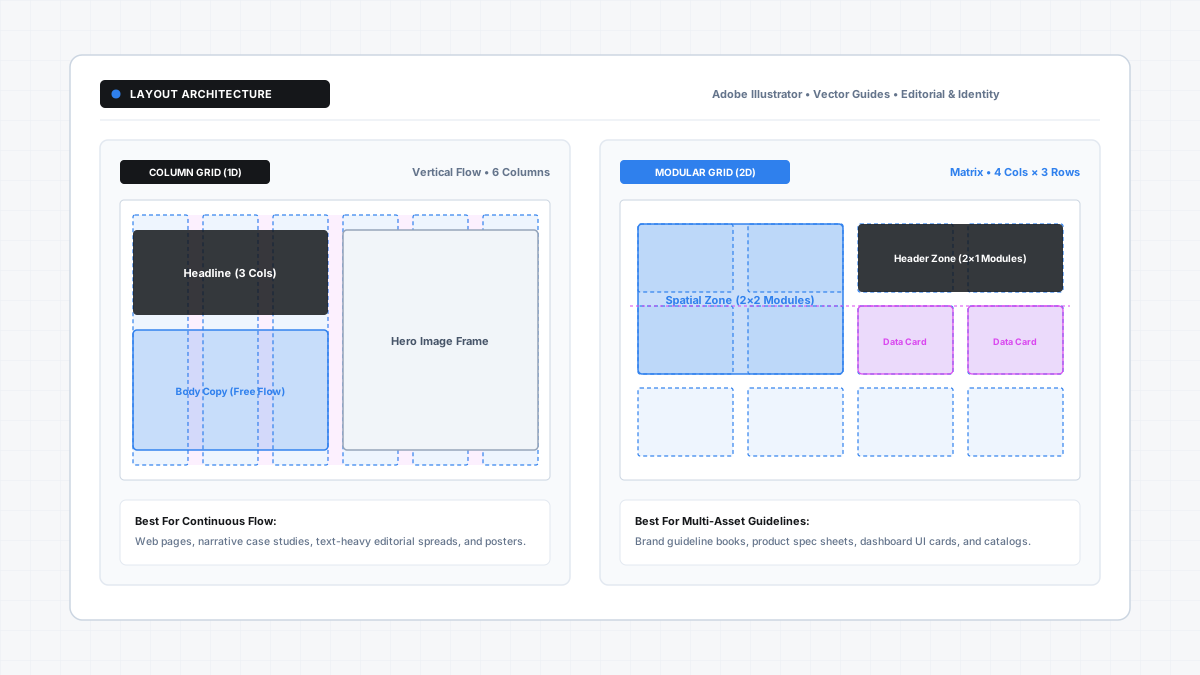
Quick Answer: A column grid divides an artboard vertically into columns separated by gutters, allowing content height to flow freely along a single axis. A modular grid introduces horizontal rows intersecting those columns, creating a two-dimensional matrix of uniform rectangular modules. Use column grids for continuous narrative reading (like case studies and editorial body copy) and modular grids for data-dense, multi-asset compositions (such as brand guideline books, packaging matrices, and product spec sheets).
Workflow Note
Constructing dual-axis modular guides manually requires calculating column widths, row heights, and matching horizontal gutters across every artboard spread. The GridMaster panel extension automates multi-artboard 12-column layouts, modular guide matrices, and typographic baseline alignments natively inside Adobe Illustrator in seconds. To present your structured grid rules to clients, document your layout standards in our Ultimate Brand Guidelines Template.
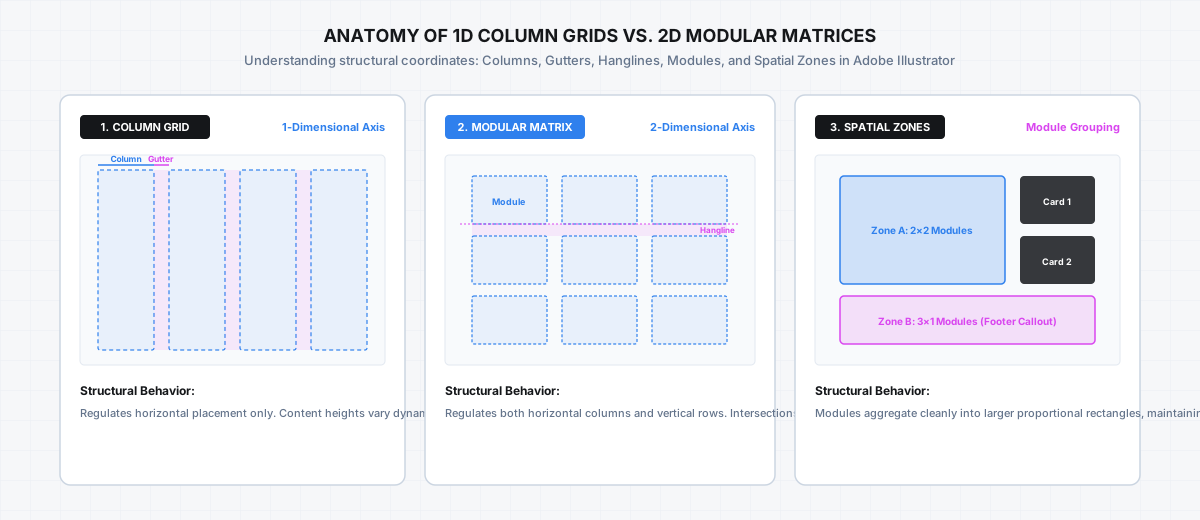
1. Column Grids vs. Modular Grids: Structural Anatomy
Choosing between a column grid and a modular grid is not a stylistic preference. It is an architectural decision that governs how information behaves across your client deliverables.
The Column Grid (1-Dimensional Vertical Axis)
A column grid organizes space along a single horizontal dimension. You divide the live width of your artboard into equal vertical bands (typically 6, 8, or 12 columns) separated by consistent vertical gutters.
- Primary Axis: Horizontal division (X-axis).
- Vertical Behavior: Content height remains fluid. Text blocks, imagery, and diagrams extend vertically downward according to their natural content volume.
- Key Anchor Elements: Left/right margins, column width, and vertical gutter width.
- Best Applied To: Editorial feature articles, narrative project case studies, website landing pages, and posters where visual elements vary widely in height.
The Modular Grid (2-Dimensional Coordinate Matrix)
A modular grid introduces horizontal divisions known as flowlines or hanglines. By crossing vertical columns with horizontal rows, the canvas transforms into a matrix of uniform rectangular units called modules.
- Primary Axis: Dual-axis division (X-axis and Y-axis simultaneously).
- Vertical Behavior: Content height is strictly bounded. Elements must span an exact integer number of modules (for example, 2 modules wide by 2 modules high), creating disciplined rectangular “spatial zones”.
- Key Anchor Elements: Columns, rows, vertical gutters, horizontal gutters, and horizontal hanglines.
- Best Applied To: Brand guideline manuals, technical spec sheets, product packaging systems, corporate annual reports, and dashboard cards.
2. Decision Framework: When to Use Each Grid Type
Identity designers frequently struggle when organizing complex brand guidelines books. Using a simple column grid often leads to uneven horizontal baselines, while forcing a narrative story into a strict modular grid feels restrictive.
Use this operational comparison table to determine the right system for your active Illustrator artboard:
| Layout Deliverable | Recommended Grid System | Column Count | Row Count | Primary Structural Benefit |
|---|---|---|---|---|
| Comprehensive Brand Guidelines | Modular Grid | 6 to 12 Columns | 4 to 8 Rows | Enforces consistent horizontal hanglines for logo clearspace and typography tables. |
| Quick Brand Summary / One-Pager | Column Grid | 6 or 12 Columns | Fluid Height | Fast setup with maximum vertical flexibility for varied brand marks. |
| Client Pitch Deck / Presentation | Modular Grid | 4 to 6 Columns | 3 to 4 Rows | Clean 16:9 spatial zones for hero mockups paired with punchy narrative cards. |
| Packaging & Label Design System | Modular Grid | 4 to 8 Columns | 4 to 6 Rows | Precise coordinate zones for legal copy, ingredient tables, and certification icons. |
| Case Study / Editorial Portfolio | Column Grid | 12 Columns | Fluid Height | Accommodates long-form body paragraphs alongside varying screenshot aspect ratios. |
3. Step-by-Step: How to Build a Modular Grid in Illustrator
Follow this manual 5-step workflow to construct an accurate 2-dimensional modular grid matrix in Adobe Illustrator without external calculators.
Step 1: Establish Your Artboard Margins
Before splitting paths, calculate your live area boundary:
- Select your target artboard using the Selection Tool (V). For a standard 16:9 digital brand presentation, use a $1920 \times 1080\text{ px}$ artboard.
- Press M to activate the Rectangle Tool.
- Click once on the canvas to open the Rectangle dialog.
- Set margins: subtract $120\text{ px}$ on each side ($240\text{ px}$ total) for width, giving a live width of $1680\text{ px}$. Subtract $90\text{ px}$ top and bottom ($180\text{ px}$ total) for height, giving a live height of $900\text{ px}$.
- Click OK, open the Align Panel (Window > Align), set Align To: Artboard, and click both Horizontal Align Center and Vertical Align Center.
Step 2: Divide into Columns and Rows Simultaneously
Use Illustrator’s path subdivision engine to calculate exact module dimensions down to the decimal point:
- Keep your live area rectangle selected.
- In the top application menu, navigate to Object > Path > Split Into Grid….
- Under the Columns section on the right:
- Set Number to
6(or12for micro-modules). - Set Gutter to
20 px.
- Set Number to
- Under the Rows section on the left:
- Set Number to
4(or6for landscape brand book spreads). - Set Gutter to
20 px(matching your column gutter maintains square spatial relationships).
- Set Number to
- Check the Preview box in the bottom-left corner. Illustrator instantly previews 24 identical module rectangles with balanced gutters.
- Click OK.
Step 3: Convert Vector Modules to Non-Printing Guides
Leaving modular rectangles as standard paths risks accidental fills, strokes, or unexpected rendering during client PDF export:
- With all newly created module shapes selected, press Ctrl + 5 (Windows) or Cmd + 5 (macOS), or select View > Guides > Make Guides.
- The vector paths instantly transform into thin, non-printing cyan layout guides.
- Verify guide visibility by toggling Ctrl + ; (Windows) or Cmd + ; (macOS).
Step 4: Group Modules into Unified Spatial Zones
A modular grid does not require every graphic asset to fit inside a single tiny box. Instead, you group adjacent modules into cohesive spatial zones:
- For a hero brand mark presentation, allocate a zone that spans 3 columns wide by 3 rows high.
- For supportive typography rules, allocate a secondary zone that spans 3 columns wide by 2 rows high.
- For metadata badges and color HEX values, place individual elements into single 1-column by 1-row modules.
- Because all zones derive from the same root matrix, your artboard maintains harmonious alignment regardless of content variety.
Step 5: Lock Guides and Establish a Dedicated Guide Layer
Prevent accidental cursor displacement while dragging vector brand marks:
- Open the Layers Panel (Window > Layers / F7).
- Create a new top layer named
Guides - Modular. - Move your guide objects to this layer.
- Lock the guides by pressing Ctrl + Alt + ; (Windows) or Cmd + Option + ; (macOS), or lock the dedicated layer in the Layers panel.
4. Common Modular Grid Production Traps in Illustrator
Constructing modular grids in Adobe Illustrator introduces common vector traps that compromise layout precision:
1. Gutter Dissonance with Typographic Leading
When building a modular grid for typography-heavy brand books, your row height plus your horizontal gutter must align mathematically with your body copy leading. If your body copy is set to $10\text{ pt}$ type with $14\text{ pt}$ leading, setting a random row gutter like $17\text{ px}$ causes text baselines to collide awkwardly with modular hanglines across column spreads. Keep row heights and gutters divisible by your baseline unit.
2. Over-Constraining Layouts with Micro-Modules
Setting an overly dense matrix (such as 16 columns by 12 rows on an A4 page) produces hundreds of tiny modules. While mathematically impressive, it leads to cognitive fatigue. Designers spend hours debating whether a logo should span 7 or 8 modules. A 6-column by 4-row or 12-column by 6-row matrix provides optimal structure without paralyzing production.
3. Mixing Document Preferences Grid with Vector Guides
Do not confuse Illustrator’s global Document Grid (View > Show Grid / Ctrl + ') with artboard-specific modular guides. The Document Grid is a global background grid anchored to document zero coordinates; it cannot calculate proportional artboard margins, column gutters, or hanglines. Layout design requires dedicated vector guides created via Object > Path > Split Into Grid….
5. Client Handoff: Documenting Grid Systems in Brand Guidelines
When delivering brand identity systems to external marketing teams, in-house agencies, or web developers, documenting your grid architecture is mandatory.
In your guideline deliverables, dedicate a full page to the layout grid:
- Annotate the Matrix: Display a blueprint diagram of the artboard showing margins, column widths, row heights, and gutter dimensions.
- Define Permitted Spatial Zones: Clearly illustrate acceptable module groupings (such as 50/50 splits, 2/3 hero zones, and 1/3 sidebar blocks) alongside forbidden configurations.
- State the Minimum Padding: Specify how much clear margin must separate live content from artboard perimeter edges.
- Supply Pre-Built Vector Templates: Avoid giving clients naked vector logos without artboard guide templates. Provide pre-built
.aifiles containing locked guide layers to guarantee cross-team consistency.
6. Frequently Asked Questions
When should I choose a modular grid over a simple column grid?
Choose a modular grid when your layout includes varied content types—such as tables, diagrams, imagery, and text callouts—that need consistent horizontal alignment across multi-page brand guidelines or annual reports. Choose a column grid when content flows naturally from top to bottom, such as blog case studies, magazine articles, or single-column brochures.
What is a spatial zone in a modular grid?
A spatial zone is a distinct rectangular area formed by combining multiple adjacent modules (both horizontally across columns and vertically across rows). Designers use spatial zones to house large photographs, hero logos, or data blocks while staying anchored to the master grid rhythm.
Can I combine a 12-column grid with a modular row system in Illustrator?
Yes. In the Object > Path > Split Into Grid… dialog box, set the column count to 12 and specify your row count (such as 4, 6, or 8). Enter matching or proportional gutters in both fields to create a versatile 12-column modular matrix.
Why do my modular guides disappear when exporting to PDF or JPG?
Vector guides created with View > Guides > Make Guides (Ctrl/Cmd + 5) are designated by Illustrator as non-printing production aids. They are excluded from PDF, JPEG, and PNG exports by default. If you need to show your grid in client documentation, leave the vector rectangles as thin stroke paths on a dedicated artwork layer rather than converting them to guides.
How do I align body text baselines with modular row hanglines?
Determine your body copy leading first (for example, 15 pt or 20 px). Then configure your modular row height and row gutter so that their sum equals an exact multiple of that leading value. This ensures every paragraph line rests directly on a grid coordinate.
How do I copy a modular grid to 20 artboards in Adobe Illustrator?
Unlock your guides (Ctrl + Alt + ; / Cmd + Option + ;), select all module guides on Artboard 1, copy them (Ctrl + C / Cmd + C), and press Ctrl + Shift + Alt + V (Windows) or Cmd + Shift + Option + V (macOS) to execute Paste on All Artboards.
Table of Contents
Recommended Tools
GridMaster
Create precise, professional vector layouts in seconds. GridMaster generates column, modular, baseline, and composition grids in Illustrator.
ColorLens
Generate palettes, check WCAG contrast, extract image colors, and export specification sheets directly inside Adobe Illustrator with ColorLens.
Logo Grider
Build logo grids, clear space rules, lockups, and minimum size systems in seconds. Logo Grider is a powerful Illustrator panel for logo designers.
Identity Assets
Bold Brand Guidelines Template
A high-performance landscape layout template for InDesign, Figma, and Illustrator. Deliver agency-level brand style guides to your clients.
Free Brand Guidelines Template
A clean brand guidelines template fully editable in Adobe Illustrator and InDesign. Ideal for freelancers and agencies organizing brand rules.
Ultimate Brand Guidelines Template
The ultimate 36-page professional brand guidelines template for Adobe Illustrator, InDesign, and Figma. Deliver agency-level brand books to clients.
Glossary Terms
Get New Branding Resources Every Week
Join over 10,000 identity designers who receive our latest curated tutorials, grid templates, checklists, and Illustrator workflow optimizations straight to their inbox.
Zero spam. Unsubscribe with a single click at any time.
Continue Reading
How to Make a 12-Column Grid in Adobe Illustrator (Manual Method & 1-Click Guides)
Learn how to set up a mathematically balanced 12-column layout grid in Adobe Illustrator. Step-by-step tutorial covering columns, gutters, margins, and guides.
How to Make a Grid in Adobe Illustrator: 3 Practical Methods (Document, Guide & Vector Grids)
Learn how to make and customize grids in Adobe Illustrator. Step-by-step tutorial covering document background grids, layout column guides, and vector meshes.
Baseline Grid in Illustrator: How to Align Typography and Vertical Rhythm
Master typographic baseline grids in Adobe Illustrator. Learn leading math, Preferences configuration, and Area Type first baseline offset alignment.