The Logo Design QA Checklist: 25 Quality Checks Before Handoff
In graphic design, a beautiful logo concept will fail in production if the underlying vector file is sloppy. Overlapping anchor points, unjoined paths, fractional coordinates, and poor color contrast create issues when the logo is rendered on screens or manufactured in physical formats (such as embroidery or laser cutting).
Before sending final files to your client, run this technical Quality Assurance checklist inside Adobe Illustrator to ensure agency-level precision.
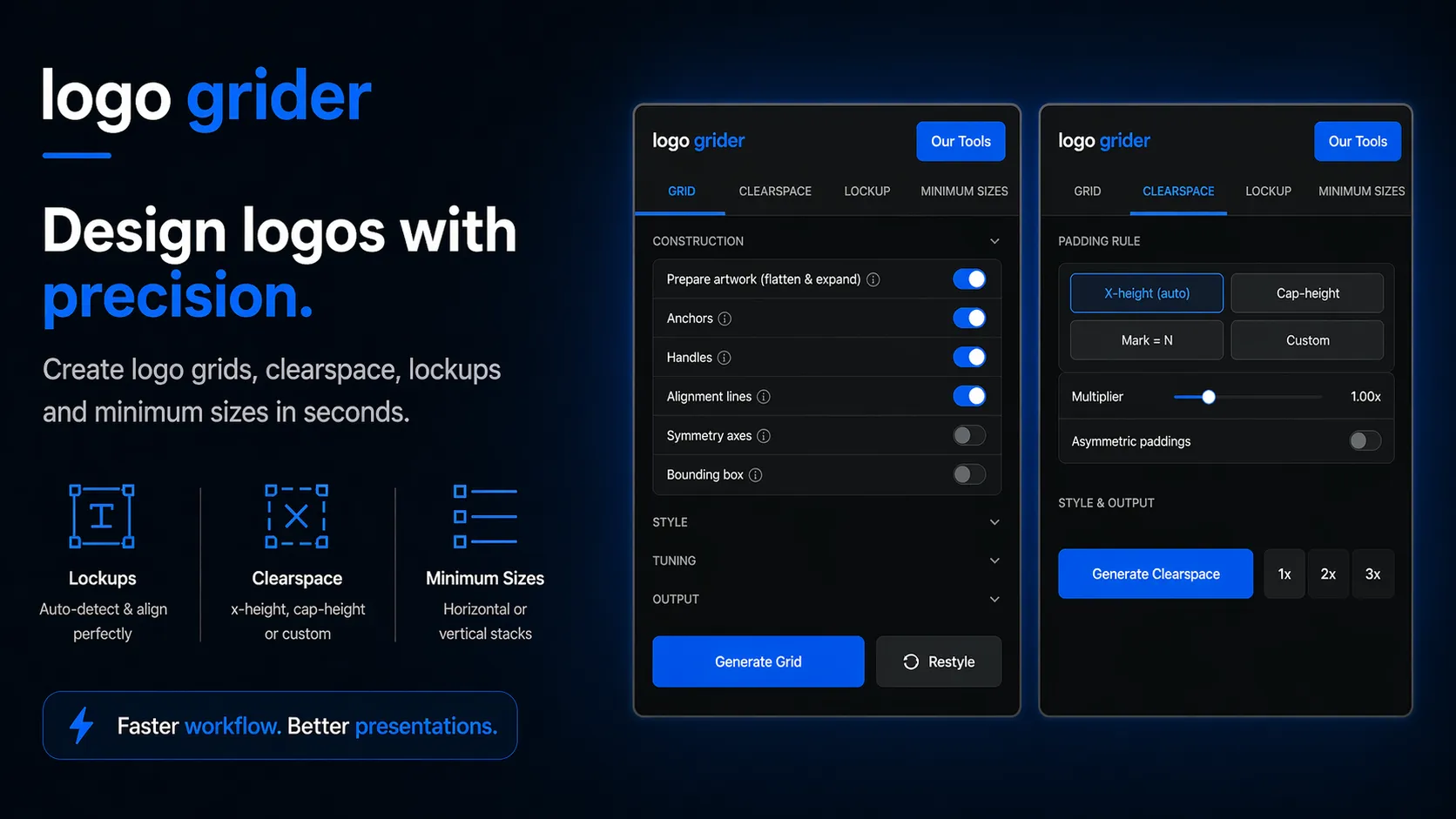
[!TIP] Workflow Tip: Inspecting paths, finding stray nodes, and checking WCAG accessibility margins manually takes hours. Use Logo Grider to clean up construction geometry and ColorLens to verify WCAG color contrast ratios directly inside your active Illustrator artboard.
1. Vector Geometry & Path Precision
Clean math creates clean rendering. Inspect the structure of your paths:
- Outline All Strokes:
- Select all paths and select Object > Path > Outline Stroke. Leaving strokes as active lines risks weight distortion when scaled.
- Expand All Effects:
- Select objects and run Object > Expand Appearance. Expand all gradients, shadows, and envelope warps to flat vector shapes.
- Unite Compound Paths:
- Open the Pathfinder Panel and click Unite or Merge to combine intersecting paths into solid compound shapes.
- Simplify Path Anchors:
- Go to Object > Path > Simplify. Eliminate unnecessary anchor points to decrease file sizes and prevent print plotting errors.
- Remove Stray Points:
- Run Object > Path > Clean Up to delete zero-length paths, unpainted objects, and empty text blocks.
- Check Path Closures:
- Ensure all vector loops are fully closed. Use the Join Tool (Ctrl + J on Windows or Cmd + J on macOS) to connect loose terminal anchors.
2. Coordinate Snapping & Grid Alignment
Avoid visual distortion and blurry rendering on digital interfaces:
- Integer Coordinate Check:
- Open the Transform Panel and ensure your logo mark’s width, height, X-position, and Y-position sit on integer pixels (e.g.
400pxand not400.34px).
- Open the Transform Panel and ensure your logo mark’s width, height, X-position, and Y-position sit on integer pixels (e.g.
- Smart Guides Intersect Snapping:
- Verify that matching shapes share identical anchor coordinates to prevent gaps or visual overlays.
- Preview Scaling Quality:
- Switch to View > Outline (Ctrl + Y on Windows or Cmd + Y on macOS) to check if paths align perfectly underneath your artwork.
- Verify Pixel Grid Alignment:
- Enable View > Pixel Preview to confirm that vertical and horizontal edges align with the pixel grid, avoiding blurry rendering.
3. Typography QA
Outlining typography is mandatory to protect against missing font errors:
- Outline Fonts:
- Select your logotype and select Type > Create Outlines (Ctrl + Shift + O on Windows or Cmd + Shift + O on macOS).
- Kern Review:
- Verify character spacing under high magnification. Keep space between glyphs optically balanced.
- Check for Hidden Text Box Stubs:
- Ensure all placeholder text blocks and blank cursors are deleted.
4. Color & Accessibility Verification
Verify contrast margins so the brandmark remains legible across all colorways:
- WCAG Contrast Ratios:
- Compare logo colors against background swatches. Enforce at least a $4.5:1$ contrast ratio for medium-to-large marks (or use ColorLens to check automatically).
- Verify Single-Color Renditions:
- Place your mark in pure black (
#000000) and pure white (#FFFFFF) to ensure no shapes disappear when high-contrast print layouts are required.
- Place your mark in pure black (
- Separate Color Modes:
- Save separate digital versions (RGB) and print versions (CMYK). Never leave RGB swatches inside a CMYK print deliverable.
5. File Properties & Packaging Handoff
Ensure the final folder structure is easy to navigate:
- Verify File Naming Conventions:
- Use clean lowercase, hyphen-separated structures:
kareemstudio-logo-primary-rgb.svg.
- Use clean lowercase, hyphen-separated structures:
- Run Pre-flight Save Checks:
- Save source files with compatible options (e.g., Illustrator CC format with PDF Compatibility enabled).
- Package Assets:
- Collect final files into a structured handoff folder, ready to integrate into your client documentation.
Conclusion & Resources
Following these 25 QA points ensures that your files are ready for developers, print shops, and branding coordinators alike.
To present these specifications clearly to your clients, download our Ultimate Brand Guidelines Template to house your QA parameters, grid rules, and design deliveries.
Table of Contents
Recommended Tools
Logo Grider
Build logo grids, clearspace rules, lockups, and minimum size systems in seconds. Logo Grider is a clean, easy-to-use Illustrator panel designed for professional brand designers.
ColorLens
Stop jumping between websites and manual workflows. ColorLens brings palette generation, WCAG contrast checks, image color extraction, and color specification sheet export directly into Adobe Illustrator.
GridMaster
Create precise, professional layouts in seconds. GridMaster is a powerful Adobe Illustrator panel designed to generate column, modular, baseline, and composition grids.
Identity Assets
Bold Brand Guidelines Template
A high-performance landscape layout template built for InDesign, Figma, and Illustrator. Reclaim your design time and deliver agency-level style guides to clients.
Free Brand Guidelines Template
A professional and clean brand guidelines template fully editable in Adobe Illustrator and InDesign. Perfect for freelancers, agencies, and business owners looking to organize brand rules.
Ultimate Brand Guidelines Template
The ultimate 36-page professional brand guidelines template built for Adobe Illustrator, InDesign, and Figma. Streamline your workflow and deliver agency-level brand books.
Get New Branding Resources Every Week
Join over 10,000 identity designers who receive our latest curated tutorials, grid templates, checklists, and Illustrator workflow optimizations straight to their inbox.
Zero spam. Unsubscribe with a single click at any time.
Related Educational Guides
How to Calculate Logo Clear Space: Spacing Ratios and Visual Safety Zones
An in-depth technical guide to calculating logo clear space using relative x-height formulas, measuring bounds, and building safety zone templates in Adobe Illustrator.
The Logo Grid Blueprint: How to Construct Geometric Logos in Adobe Illustrator
A comprehensive, step-by-step guide to constructing geometric logo grids using concentric circles, polar coordinates, and snapping systems inside Adobe Illustrator.